

Ultimate Guide | How to Upload a GPX File
Our step-by-step guide walks you through how to upload a GPX file. Whether you want to upload to a Garmin, Apple or other watch or to Strava or AllTrails, we’ve got you covered!

HOW TO UPLOAD A GPX TO YOUR:
Garmin
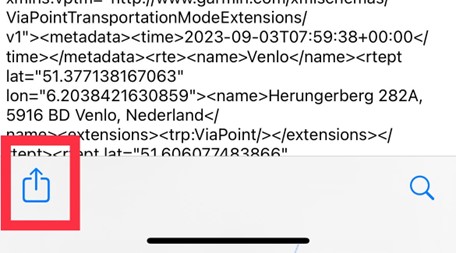
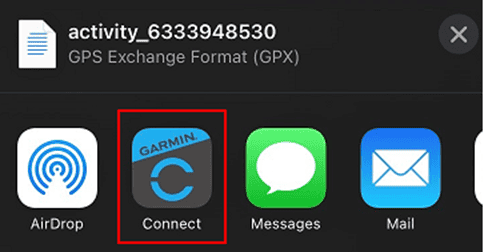
Download the GPX from the email or website. On IOS, simply tap the icon, as highlighted below, to open then open Garmin Connect. You will then open view course map within the app and you can save it to your device..
– On an Android, when you click on your downloaded GPX file it will display different app options to open it with, select Garmin Connect.
Coros
Download the GPX from our email or website. On IOS, simply tap the icon to then open Coros. This will then open view course map within the app and you can save it to your device.
– On an Android, when you click on your downloaded GPX file it will display different app options to open it with, select Coros
Suunto
Download the GPX from our email or website. On IOS, simply tap the icon to then open Suunto. This will then open view course map within the app and you can save it to your device.
– On an Android, when you click on your downloaded GPX file it will display different app options to open it with, select Suunto
Polar
Download the GPX from our email or website. On IOS, simply tap the icon to then open Polar. This will then open view course map within the app and you can save it to your device.
– On an Android, when you click on your downloaded GPX file it will display different app options to open it with, select Polar.
Apple Watch
In order to upload a GPX to your watch, you will need to download the “Work Outdoors” app. On the iPhone select the GPX route in a Mail message or in Safari. Tap Export or Share and select WorkOutDoors from the list of apps that accept GPX files. The route should appear in the Routes tab on the iPhone. Tap “Send to Watch”.
On the watch touch the screen for a second and select “Settings”. Select “Routes” and tap the route you require. This route will then be drawn on the map. Note that the map does not move to show the route.
How to upload a GPX to your phone:
1. Upload on Strava
– Connect your Garmin/Coros/device to Strava and easily share your route.
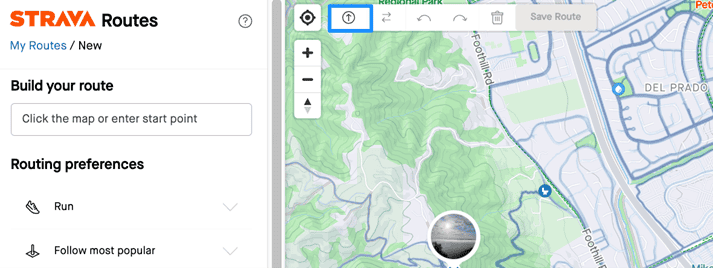
Just go to your computer’s dashboard, create a new route under ‘my routes,’ and hit ‘upload route.’ Save it, and it automatically becomes a favourite (marked with an orange star). This ensures it transfers smoothly to Garmin Connect and your Garmin device.
Pros: No cables needed; easy process; instant sharing.
Cons: Limited route planning in Strava’s free version
In order to upload a GPX to your watch, you will need to download the “Work Outdoors” app. On the iPhone select the GPX route in a Mail message or in Safari. Tap Export or Share and select WorkOutDoors from the list of apps that accept GPX files. The route should appear in the Routes tab on the iPhone. Tap “Send to Watch”.
On the watch touch the screen for a second and select “Settings”. Select “Routes” and tap the route you require. This route will then be drawn on the map. Note that the map does not move to show the route.
Apple Watch
In order to upload a GPX to your watch, you will need to download the “Work Outdoors” app. On the iPhone select the GPX route in a Mail message or in Safari. Tap Export or Share and select WorkOutDoors from the list of apps that accept GPX files. The route should appear in the Routes tab on the iPhone. Tap “Send to Watch”.
On the watch touch the screen for a second and select “Settings”. Select “Routes” and tap the route you require. This route will then be drawn on the map. Note that the map does not move to show the route.
How to upload a GPX to your phone:
1. Upload on Strava
– Connect your Garmin/Coros/device to Strava and easily share your route.
Just go to your computer’s dashboard, create a new route under ‘my routes,’ and hit ‘upload route.’ Save it, and it automatically becomes a favourite (marked with an orange star). This ensures it transfers smoothly to Garmin Connect and your Garmin device.
Pros: No cables needed; easy process; instant sharing.
Cons: Limited route planning in Strava’s free version
In order to upload a GPX to your watch, you will need to download the “Work Outdoors” app. On the iPhone select the GPX route in a Mail message or in Safari. Tap Export or Share and select WorkOutDoors from the list of apps that accept GPX files. The route should appear in the Routes tab on the iPhone. Tap “Send to Watch”.
On the watch touch the screen for a second and select “Settings”. Select “Routes” and tap the route you require. This route will then be drawn on the map. Note that the map does not move to show the route.
How to upload a GPX to your phone:
Upload on Strava
Connect your Garmin/Coros/device to Strava and easily share your route.
Just go to your computer’s dashboard, create a new route under ‘my routes,’ and hit ‘upload route.’ Save it, and it automatically becomes a favourite (marked with an orange star). This ensures it transfers smoothly to Garmin Connect and your Garmin device.
Pros: No cables needed; easy process; instant sharing.
Cons: Limited route planning in Strava’s free version.
Upload on Alltrails
Log into your account on https://www.alltrails.com/
Hover over ‘Saved’ in the top header and select ‘Create Map’
Click ‘Upload from file’ in the left panel
Hit ‘Browse’ to open your file manager and select your file
Click ‘Next’ to finish the upload
You will see a ‘Route uploaded’ pop-up to confirm your file was uploaded successfully
FREE GPX VIEWER ON YOUR PHONE
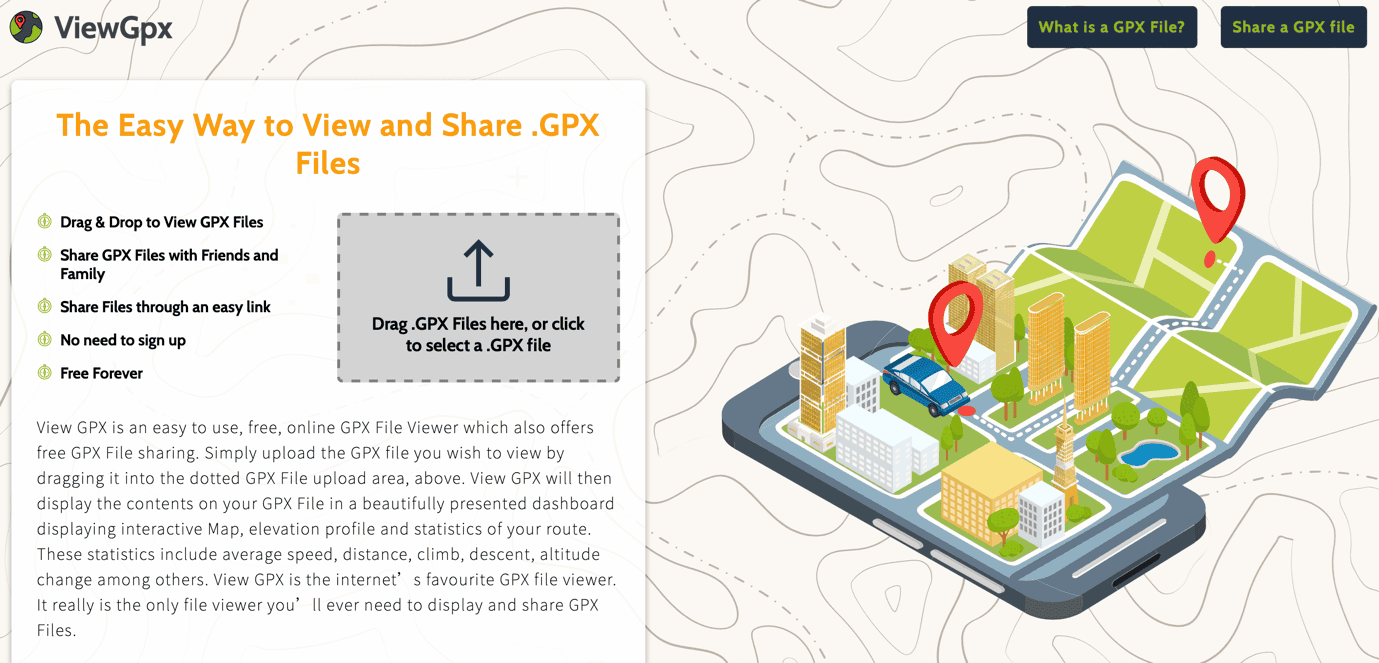
For those of you without a GPS watch or paid subscription, the easiest way to upload a GPX file onto your phone for free navigation is using a site such as https://www.viewgpx.com . You can upload the GPX from files into this site and it will map the route out for you.
What could go wrong?
– When downloading your GPX file you will be greeted with complex code and figures such as the GPX file example below! Do not panic! You haven’t made an error, you can ignore the intricacies of this and just select the bottom left icon to upload it to your preferred site.
When downloading your GPX file you will be greeted with complex code and figures such as the GPX file example below! Do not panic! You haven’t made an error, you can ignore the intricacies of this and just select the bottom left icon to upload it to your preferred site..
You will need to ensure once your route is on your specific app, you then “send to watch”.
To see the GPX route on your watch, select the “navigation” option before starting your run!.